

Notification Center
The Notification Center (NC) lets mobile app users view push notifications that were previously sent to them.
Your app must already be integrated with the Maestra SDK before setting up the Notification Center.
This integration will allow you to:
- Save and display push notifications sent from Maestra in the NC
- Send NC and push open events back to Maestra for analytics
1. Retrieving push data from the SDK
This step covers how to obtain and process push data for display in the NC.
IOS
Example push notification data — with a button and an image:
{
  "clickUrl": "https://maestra.io/",
  "payload": "{\n  \"payload\": \"data\"\n}",
  "uniqueKey": "4cccb64d-ba46-41eb-9699-3a706f2b910b",
  "imageUrl": "https://mobpush-images.maestra.io/Mpush-test/63/5933f4cd-47e3-4317-9237-bc5aad291aa9.png",
  "buttons": [
    {
      "url": "https://developers.maestra.io/docs/mobile-sdk",
      "text": "Documentation",
      "uniqueKey": "1b112bcd-5eae-4914-8842-d77198466466"
    }
  ],
  "aps": {
    "mutable-content": 1,
    "alert": {
      "title": "Test title",
      "body": "Test description"
    },
    "content-available": 0,
    "sound": "default"
  }
}
SDK 2.11.0 and later
We made the isMindboxPush and getMindboxPushData in the Mindbox and MindboxNotifications available in SDK 2.11.0. You can use these methods in AppDelegate, Notification Service Extension or Notification Content Extension:
Use isMindboxPush and getMindboxPushData in the Mindbox or MindboxNotificationstargets. These methods are available in AppDelegate, NotificationServiceExtension, and NotificationContentExtension:
isMindboxPushreturnstrueif the message came from Maestra andfalseotherwise.getMindboxPushDatareturns anMBPushNotificationmodel with the push data.
public struct MBPushNotification: Codable {
    public let aps: MBAps?
    public let clickUrl: String?
    public let imageUrl: String?
    public let payload: String?
    public let buttons: [MBPushNotificationButton]?
    public let uniqueKey: String?

    enum CodingKeys: String, CodingKey {
        case aps, clickUrl, imageUrl, payload, buttons, uniqueKey
    }
}
public struct MBAps: Codable {
    public let alert: MBApsAlert?
    public let sound: String?
    public let mutableContent: Int?
    public let contentAvailable: Int?

    enum CodingKeys: String, CodingKey {
        case alert, sound
        case mutableContent = "mutable-content"
        case contentAvailable = "content-available"
    }
}
public struct MBApsAlert: Codable {
    public let title: String?
    public let body: String?
}
public struct MBPushNotificationButton: Codable {
    public let text: String?
    public let url: String?
    public let uniqueKey: String?
}
Parameter descriptions:
| Parameter | Description |
|---|---|
uniqueKey | Identifies the notification as sent by Maestra |
clickUrl | URL to open when the user taps the notification |
imageUrl | URL of the image to display in the notification |
payload | Additional data sent with the notification |
buttons | Action buttons in the notification. Each button has: uniqueKey (not in use), text, and url |
aps |
alert — the text content of the notification. Contains:
|
Example — using the methods in NotificationServiceExtension or NotificationContentExtension:
NotificationServiceExtension or NotificationContentExtension:import UserNotifications
import MindboxNotifications
class NotificationService: UNNotificationServiceExtension {
lazy var mindboxService: MindboxNotificationServiceProtocol = MindboxNotificationService()
override func didReceive(_ request: UNNotificationRequest, withContentHandler contentHandler: @escaping (UNNotificationContent) -> Void) {
let userInfo = request.content.userInfo
if mindboxService.isMindboxPush(userInfo: userInfo), let mindboxPushNotification = mindboxService.getMindboxPushData(userInfo: userInfo) {
// Do some code
}
mindboxService.didReceive(request, withContentHandler: contentHandler)
}
// ...
}import UIKit
import UserNotifications
import UserNotificationsUI
import MindboxNotifications
class NotificationViewController: UIViewController, UNNotificationContentExtension {
lazy var mindboxService: MindboxNotificationContentProtocol = MindboxNotificationService()
func didReceive(_ notification: UNNotification) {
let userInfo = notification.request.content.userInfo
if mindboxService.isMindboxPush(userInfo: userInfo), let mindboxPushNotification = mindboxService.getMindboxPushData(userInfo: userInfo) {
// Do some code
}
mindboxService.didReceive(notification: notification, viewController: self, extensionContext: extensionContext)
}
}SDK 2.11.0 and older
Use the userInfo parameter from UNNotificationRequest.UNNotificationContent to process push notifications in NotificationServiceExtension or NotificationContentExtension . It contains push notification data as a dictionary , where you can look up values by key. You can also serialize it to JSON or work with it directly as a [String: Any] dictionary.
The full list of fields the push notification model may contain here.
The MBPushNotification structure described above can also be implemented directly in your Notification Service Extension target.
import UserNotifications
import MindboxNotifications


class NotificationService: UNNotificationServiceExtension {

    lazy var mindboxService = MindboxNotificationService()

    override func didReceive(_ request: UNNotificationRequest, withContentHandler contentHandler: @escaping (UNNotificationContent) -> Void) {

        let userInfo = request.content.userInfo

				if let jsonData = try? JSONSerialization.data(withJSONObject: userInfo, options: .prettyPrinted), let jsonString = String(data: jsonData, encoding: .utf8) {
            print("Pretty printed JSON: \(jsonString)")
        }

        // Deserializing userInfo into a dictionary
        if let jsonDict = userInfo as? [String: Any] {

            // Extracting field values by key
            if let clickUrl = jsonDict["clickUrl"] as? String {
                print("Click URL: \(clickUrl)")
            }

            if let payload = jsonDict["payload"] as? String {
                print("Payload: \(payload)")
            }

            if let uniqueKey = jsonDict["uniqueKey"] as? String {
                print("Unique Key: \(uniqueKey)")
            }

            if let imageUrl = jsonDict["imageUrl"] as? String {
                print("Image URL: \(imageUrl)")
            }

            // Iterating over the buttons array
            if let buttons = jsonDict["buttons"] as? [[String: Any]] {
                for button in buttons {
                    if let text = button["text"] as? String,
                       let url = button["url"] as? String,
                       let buttonUniqueKey = button["uniqueKey"] as? String {
                        print("Button text: \(text), URL: \(url), Unique Key: \(buttonUniqueKey)")
                    }
                }
            }

            // Working with nested aps object
            if let aps = jsonDict["aps"] as? [String: Any] {
                if let alert = aps["alert"] as? [String: Any] {
                    if let title = alert["title"] as? String,
                       let body = alert["body"] as? String {
                        print("Alert title: \(title), body: \(body)")
                    }
                }

                if let sound = aps["sound"] as? String {
                    print("Sound: \(sound)")
                }

                if let mutableContent = aps["mutable-content"] as? Int {
                    print("Mutable Content: \(mutableContent)")
                }

                if let contentAvailable = aps["content-available"] as? Int {
                    print("Content Available: \(contentAvailable)")
                }
            }
        }

        mindboxService.didReceive(request, withContentHandler: contentHandler)
    }
  // Other code...
}
import UserNotifications
import MindboxNotifications
struct PushNotification: Codable {
//...
}
class NotificationService: UNNotificationServiceExtension {
lazy var mindboxService = MindboxNotificationService()
override func didReceive(_ request: UNNotificationRequest, withContentHandler contentHandler: @escaping (UNNotificationContent) -> Void) {
let userInfo = request.content.userInfo
do {
let jsonData = try JSONSerialization.data(withJSONObject: userInfo, options: [])
let mindboxPushNotification = try JSONDecoder().decode(PushNotification.self, from: jsonData)
// Perform some code
// saveToNotificationCenter(mindboxPushNotification)
print(mindboxPushNotification.uniqueKey)
print(mindboxPushNotification.imageUrl)
} catch {
print(error.localizedDescription)
}
mindboxService.didReceive(request, withContentHandler: contentHandler)
}
// Other code...
}ANDROID
The app uses services that extend FirebaseMessagingService. The onMessageReceived method processes all incoming push notifications — including those from Maestra — in both the foreground and background.
SDK 2.8.4 and later
SDK 2.8.4 introduced two new methods in MindboxFirebase:
isMindboxPushreturnstrueif the message came from Maestra,falseotherwise.convertToMindboxRemoteMessagereturns aMindboxRemoteMessageobject with the push data.
data class MindboxRemoteMessage(
    val uniqueKey: String,
    val title: String,
    val description: String,
    val pushActions: List<PushAction>,
    val pushLink: String?,
    val imageUrl: String?,
    val payload: String?,
)
data class PushAction(
    @SerializedName("uniqueKey") val uniqueKey: String?,
    @SerializedName("text") val text: String?,
    @SerializedName("url") val url: String?,
)
Parameter descriptions:
| Parameter | Description |
|---|---|
uniqueKey | Identifies the notification as sent by Maestra |
title | Notification title |
description | Notification body |
pushLink | URL to open when the user taps the notification |
imageUrl | URL of the image to display in the notification |
payload | Additional data sent with the notification |
pushActions | Action buttons in the notification. Each button has: uniqueKey (not in use), text, and url |
Example push notification data returned by convertToMindboxRemoteMessage — with a button and an image:
{
  "description": "Test description",
  "imageUrl": "https://mobpush-images.maestra.io/Mpush-test/63/5933f4cd-47e3-4317-9237-bc5aad291aa9.png",
  "payload": "{\n  \"payload\": \"data\"\n}",
  "pushActions": [
    {
      "text": "Documentation",
      "uniqueKey": "04867c72-56a7-49bd-8c17-af6fbfaadb87",
      "url": "https://developers.maestra.io/docs/mobile-sdk"
    }
  ],
  "pushLink": "https://maestra.io/",
  "title": "Test title",
  "uniqueKey": "9a055240-f12e-4cc6-951a-752f0a7ebee8"
}
Example — calling the methods:
class FcmMessagingService : FirebaseMessagingService() {
    override fun onMessageReceived(remoteMessage: RemoteMessage) {
        super.onMessageReceived(remoteMessage)
         /*
            Previously used code
         */
        val isMindboxPush = MindboxFirebase.isMindboxPush(remoteMessage)
        Log.d("Mindbox","Current push notification with id ${remoteMessage.messageId} belongs to mindbox = $isMindboxPush")
        if (isMindboxPush) {
            val message = MindboxFirebase.convertToMindboxRemoteMessage(remoteMessage)
            Log.d("Mindbox","Successfully converted message to $message")
        }
    }
}
SDK older than 2.8.4
Retrieve push data from the remoteMessage: RemoteMessage parameter and transform into models in a following way:
- for Firebase—from the remoteMessage.data array
data class RemoteMessage(
    @SerializedName("uniqueKey") val uniqueKey: String,
    @SerializedName("title") val title: String,
    @SerializedName("message") val description: String,
    @SerializedName("buttons") val pushActions: List<PushAction>,
    @SerializedName("clickUrl") val pushLink: String?,
    @SerializedName("imageUrl") val imageUrl: String?,
    @SerializedName("payload")  val payload: String?
)

data class PushAction(
    @SerializedName("uniqueKey") val uniqueKey: String?,
    @SerializedName("text") val text: String?,
    @SerializedName("url") val url: String?
)
Parameter description:
| Parameter | Description |
|---|---|
uniqueKey | Identifies the notification as sent by Maestra |
title | Notification title |
message | Notification body |
clickUrl | URL to open when the user taps the notification |
imageUrl | URL of the image to display in the notification |
payload | Additional data sent with the notification |
buttons | Action buttons in the notification. Each button has: uniqueKey (not in use), text, and url |
Retrieve push data from the RemoteMessage parameter — with a button and an image:*
{
  "data" : {
      "title" : "Hi, this is push! 😄😄",
      "message" : "This is the trial push text. Look, do I fit right?\nHere is the backgroud mode check"
			"clickUrl":"https:\/\/maestra.io\/",
      "imageUrl":"https:\/\/mobpush-images.maestra.io\/Mpush-test\/223\/59c92f76-c417-4cf5-a468-af49d8296c49.gif",
      "payload":"",
      "buttons":[
            {
                "url" : "https:\/\/pushok.maestra.io\/?b=1&k=2",
					      "text" : "Button 1😡",
					      "uniqueKey" : "cff05f38-6df4-4a10-9859-ea3bf0a65068"
            },
            {
                "url" : "https:\/\/pushok.maestra.io\/?b=1&k=3",
					      "text" : "Button 2😡",
					      "uniqueKey" : "4df5a10c-d5d1-4059-8e59-df3f12aec757"
            }
        ],
        "uniqueKey":"<message GUID>"
    }
}
2. Saving the push notification
Save the received push notification either on your backend or directly on the user's device.
Cross-platform appsWhen saving push notifications on-device in a Flutter or React Native app, use the native storage mechanisms for iOS and Android separately.
3. Displaying push notifications in the NC
Display push notifications in your notification center UI.
You can pass any data that affects rendering — such as expiration dates — through the payload field.
Show notifications for authenticated users onlyWe recommend displaying push notifications only for authenticated users. If multiple users share a device, showing notifications without an auth check risks displaying one user's notifications to another.
4. Sending events to Maestra
This step is optional. It lets you record NC opens and push taps within the NC as actions in Maestra for analytics.
Step 4.1: Create action templates in Maestra
| Action | System name |
|---|---|
| User opens the NC | NotificationCentrOpen |
| User opens a push from the NC | NotificationCentrPushOpen |
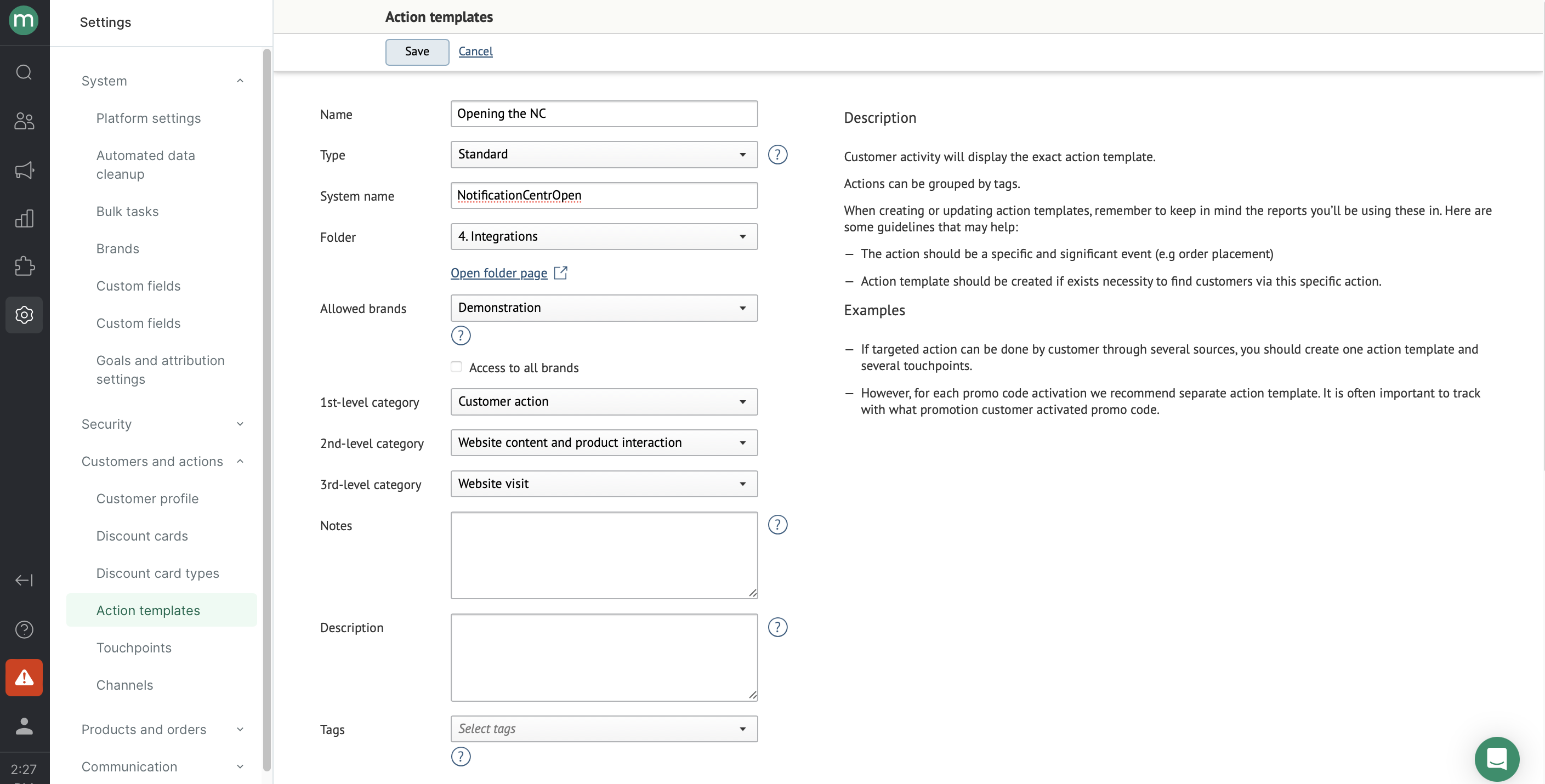
System name: NotificationCentrOpen
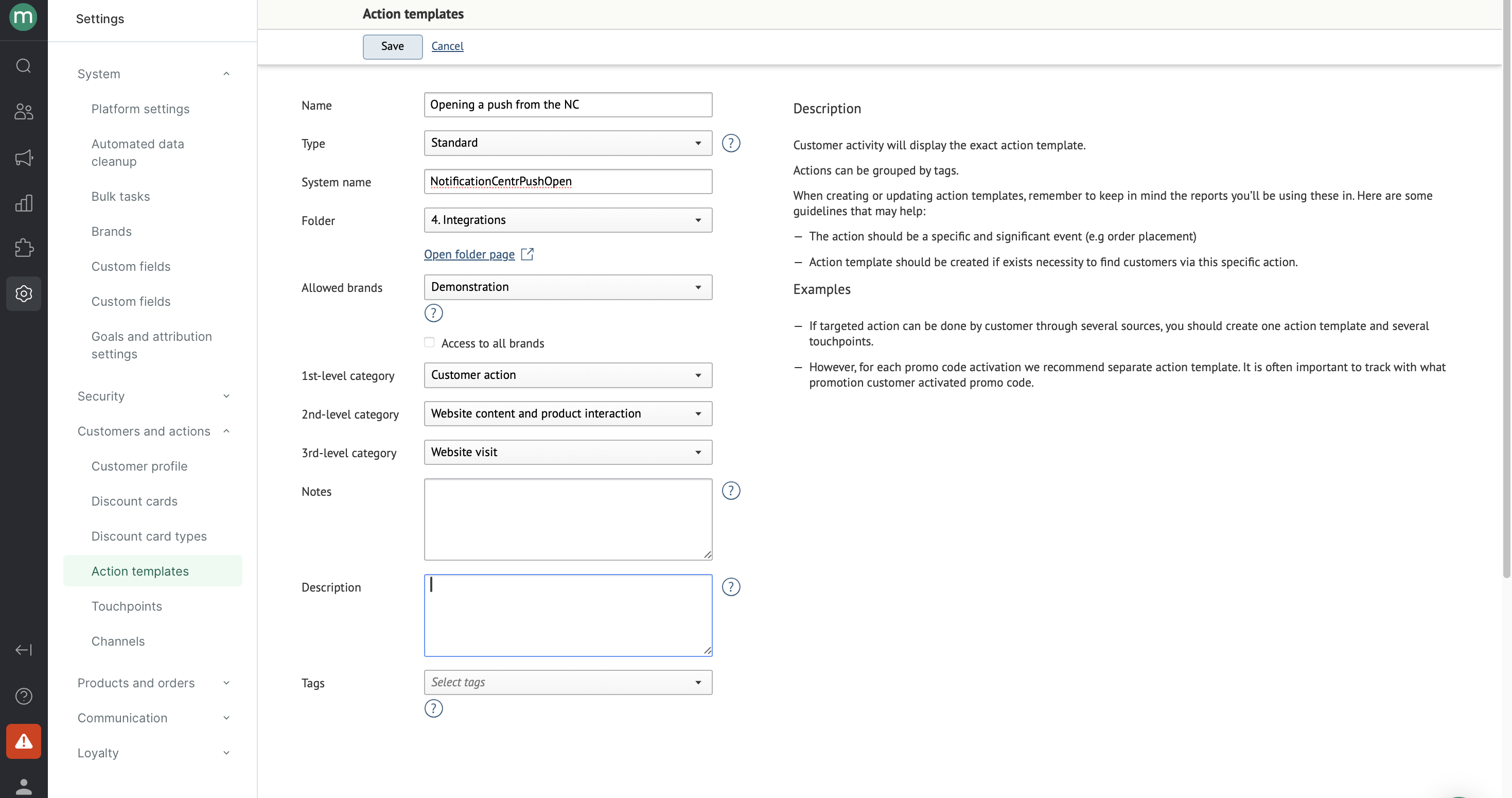
System name: NotificationCentrPushOpen
Step 4.2: Create custom fields (or use already existing ones) to pass data about the opened push.
Example:
| Field | Entity | System name | Type |
|---|---|---|---|
| Transliterated push name (used for campaign lookup) | Customer action | MobPushTranslateName | String |
| Push send date | Customer action | MobPushSendDateTime | Date and time |
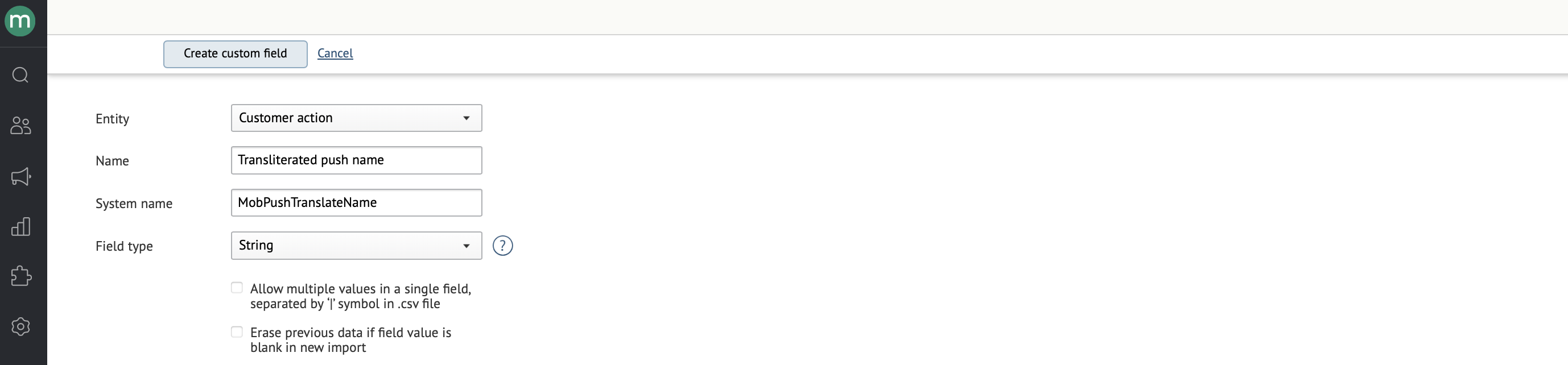
System name: MobPushTranslateName
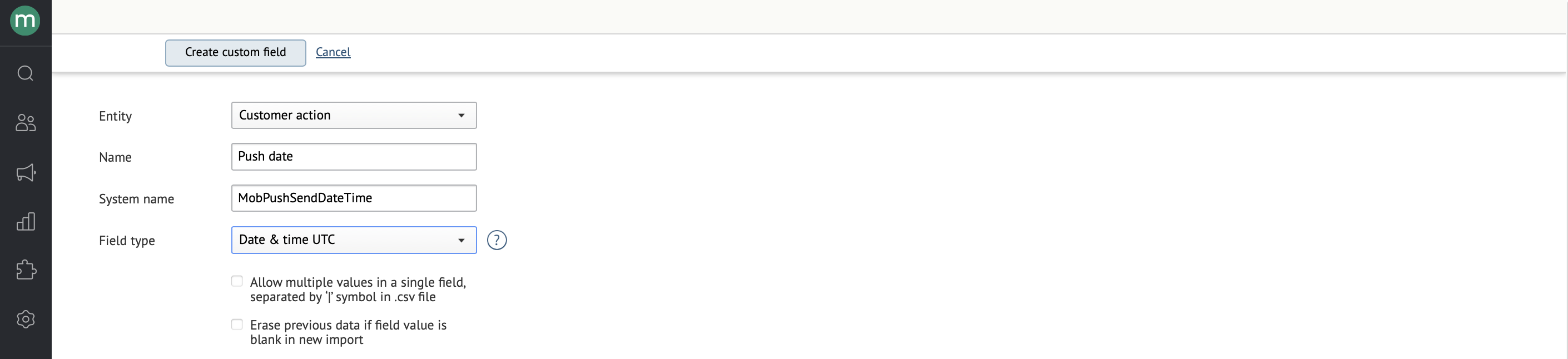
System name: MobPushSendDateTime
Step 4.3. Create methods in Maestra.
| Method | System name |
|---|---|
| NC opened | mobileapp.NCOpen |
| Push opened from NC | mobileapp.NCPushOpen |
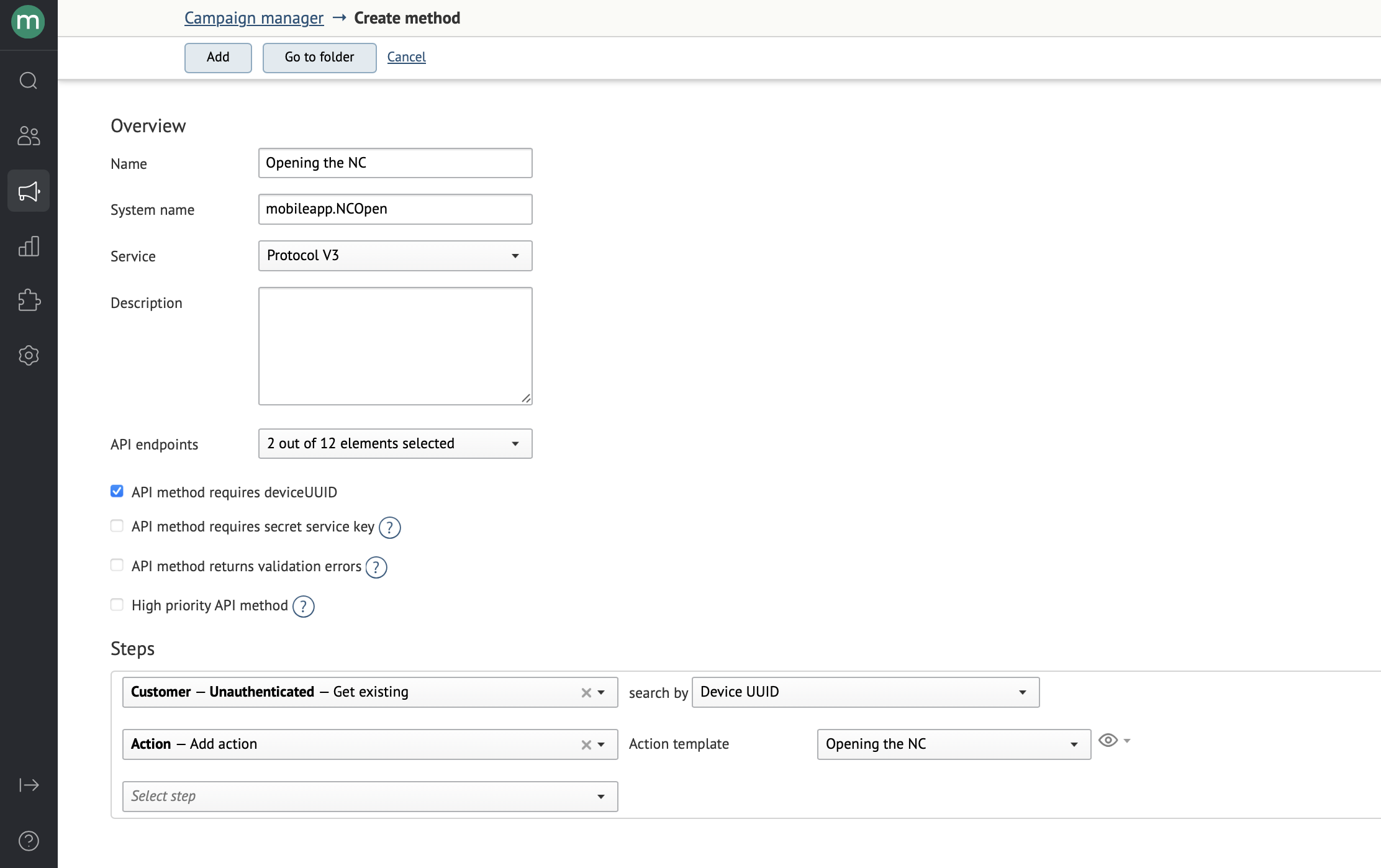
System name: mobileapp.NCOpen
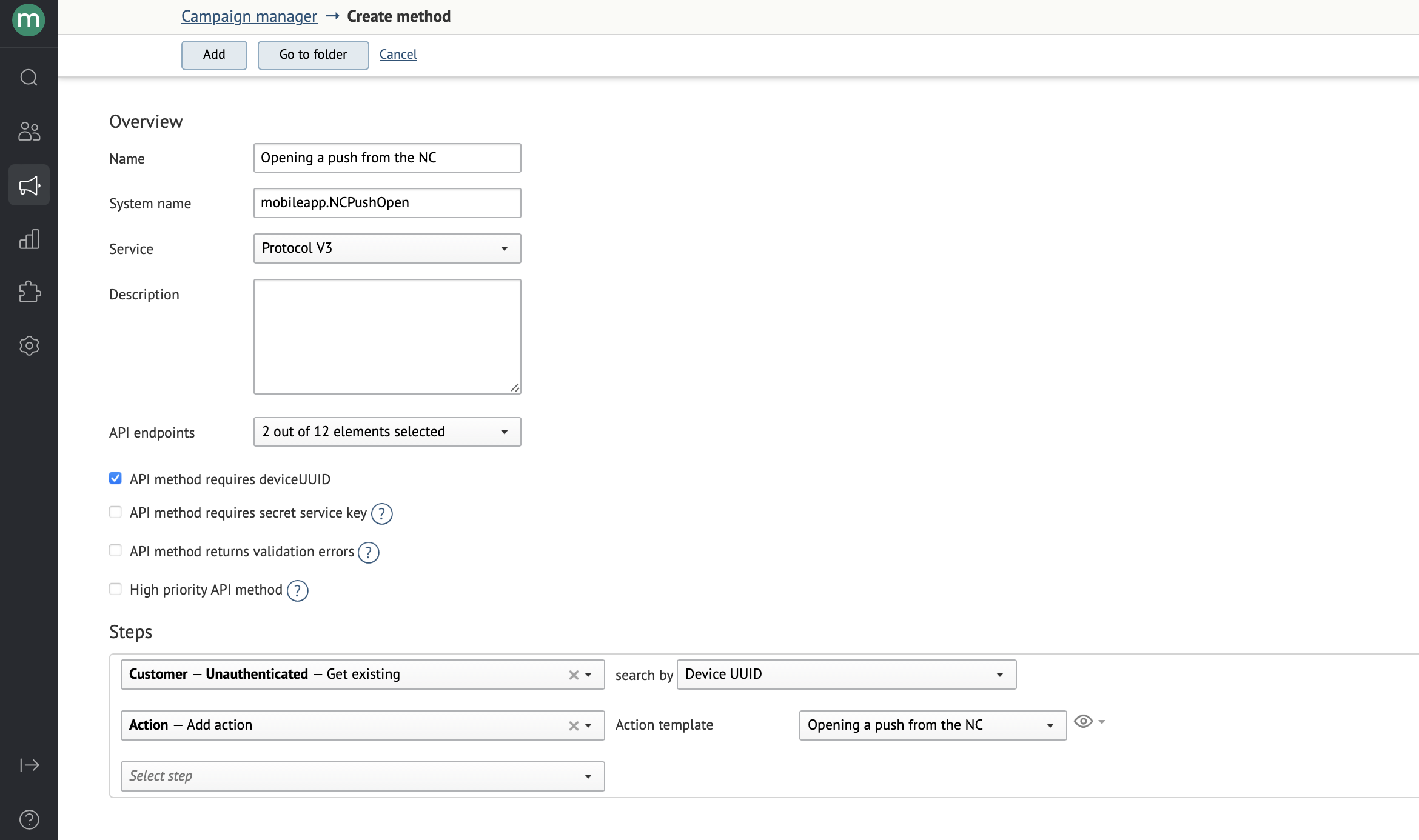
System name: mobileapp.NCPushOpen
Step 4.4 Implement push notification tap handling from the NC.
Step 4.5 Parse the push payload to pass open event data to Maestra when the user taps a notification from the NC. For example, to pass the push name and send date:
{
 "pushName":"test name push open",
 "pushDate":"test date push open"
}
Step 4.6: Track NC opens
Example
When the user opens the NC, the app sends a request to perform the operation configured in Step 4.3.
mindbox("async", {
    operation: "mobileapp.NCOpen",
    data: {
        // You can include any additional data here if needed.
    }
});
If the call succeeds, a "Opening the NC in method 'Opening the Nc'" action will appear in the customer's profile in Maestra.

Step 4.7 Track mobile push opens from the NC.
Example
When the user opens the mobile push notification from the NC, the app sends a request to perform the operation configured in Step 4.3
Pass saved values from push_name and push_date:
mindbox("async", {
  operation: "mobileapp.NCPushOpen",
  data: {
  customerAction: {
    customFields: {
      mobPushSendDateTime: "<Push sending date>",
      mobPushTranslateName: "<transliterated push name>"
    }
  }
}
});
If the call succeeds, a "Opening a push from the NC in method 'Opening a push from the NC'" action will appear in the customer's profile in Maestra.

Updated 8 months ago