

Getting Credentials and Setting Up Connection to APNs
Before you begin, make sure this step is completed successfully:
Expected result of the “Getting Credentials and Setting Up Connection to APNs” step:
- APNs credentials for the mobile app have been obtained.
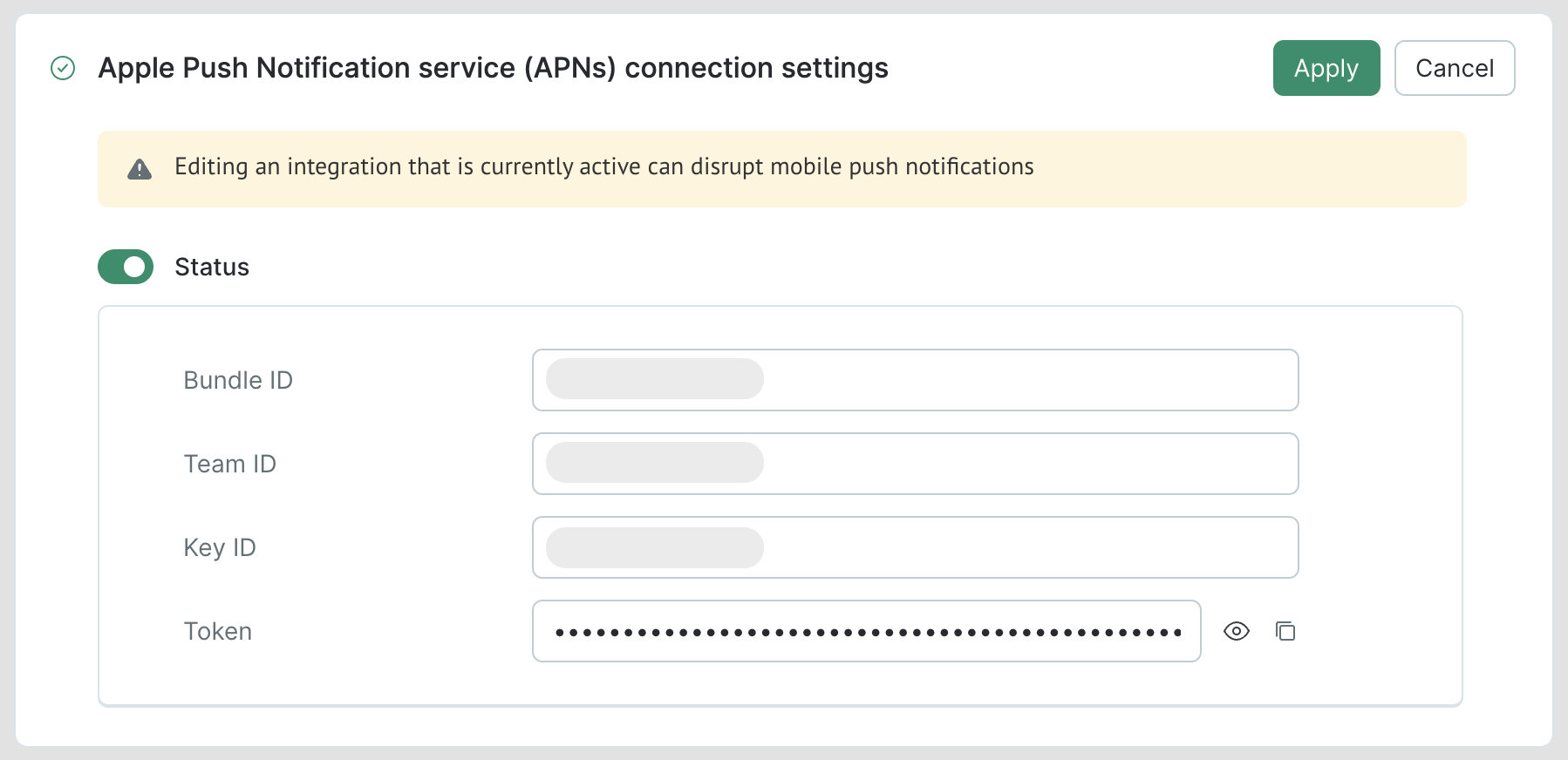
- The bundle ID, team ID, key ID, and token have been added to the Apple Push Notification service (APNs) connection settings of the previously created iOS integration point.
When enabling mobile push notifications for an iOS app, you will need a keychain of four keys:
- Bundle ID;
- Team ID;
- Key ID;
- Token (file with the
.p8extension).
You can obtain them through your Apple Developer Account or from the settings of your current push notification provider.
Creating an APNs Key
How to get the Key:
-
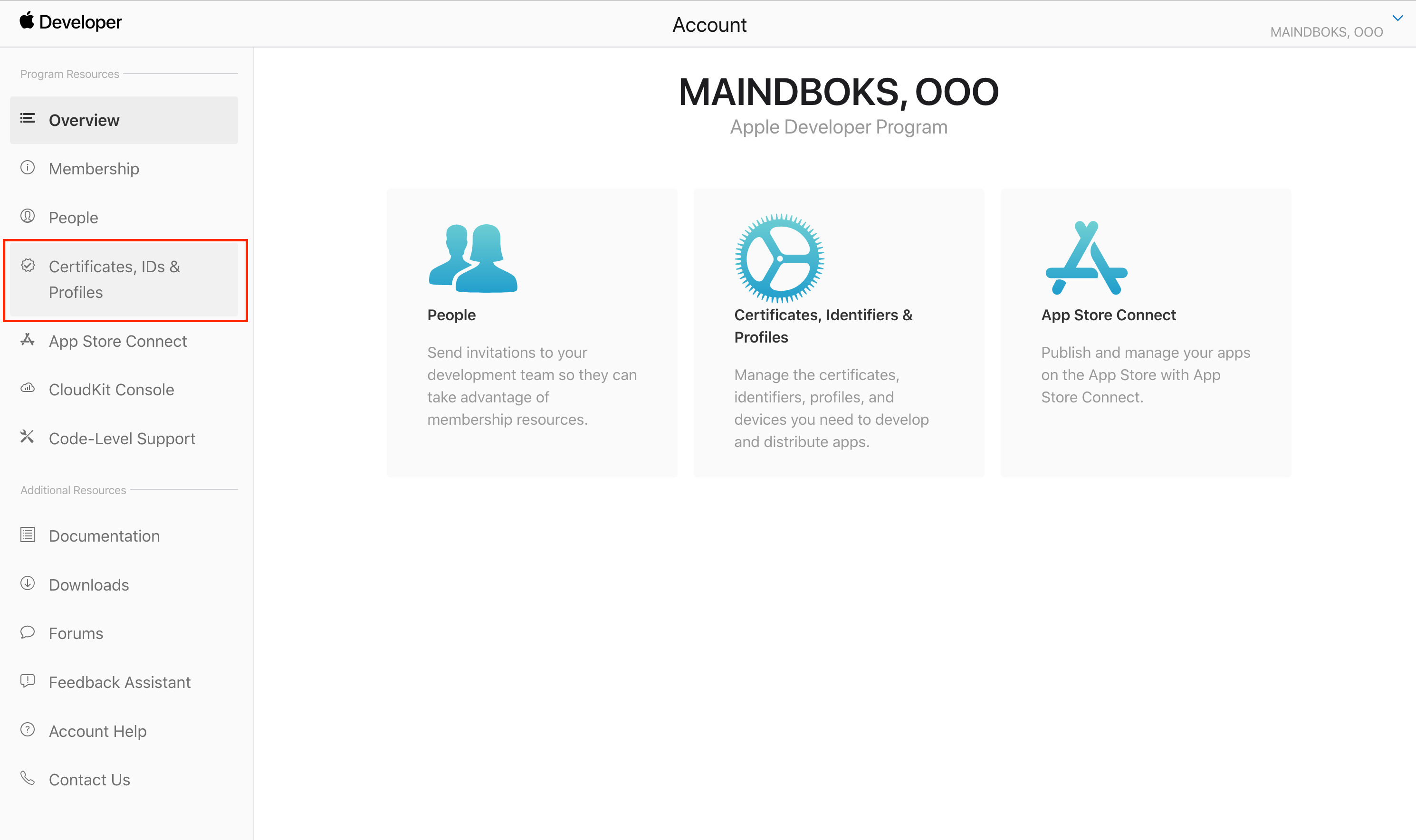
Open the Apple Developer console at https://developer.apple.com/account/.
-
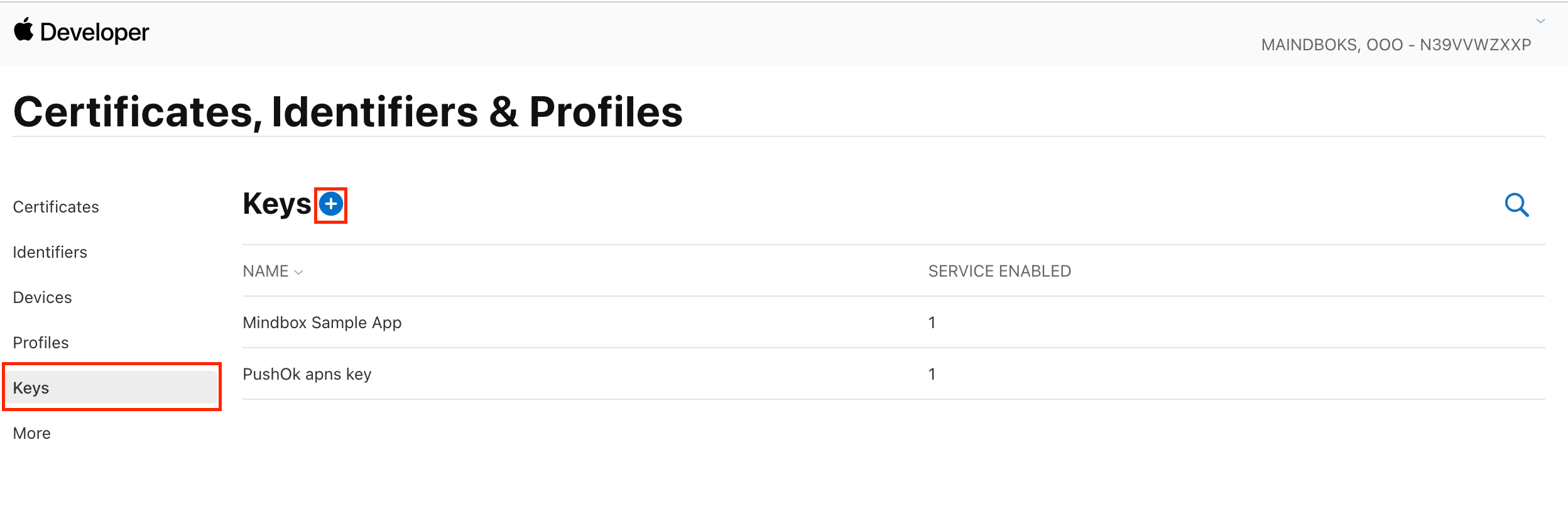
Go to Certificates, Identifiers & Profiles → Keys.
-
Click the "+" button.
-
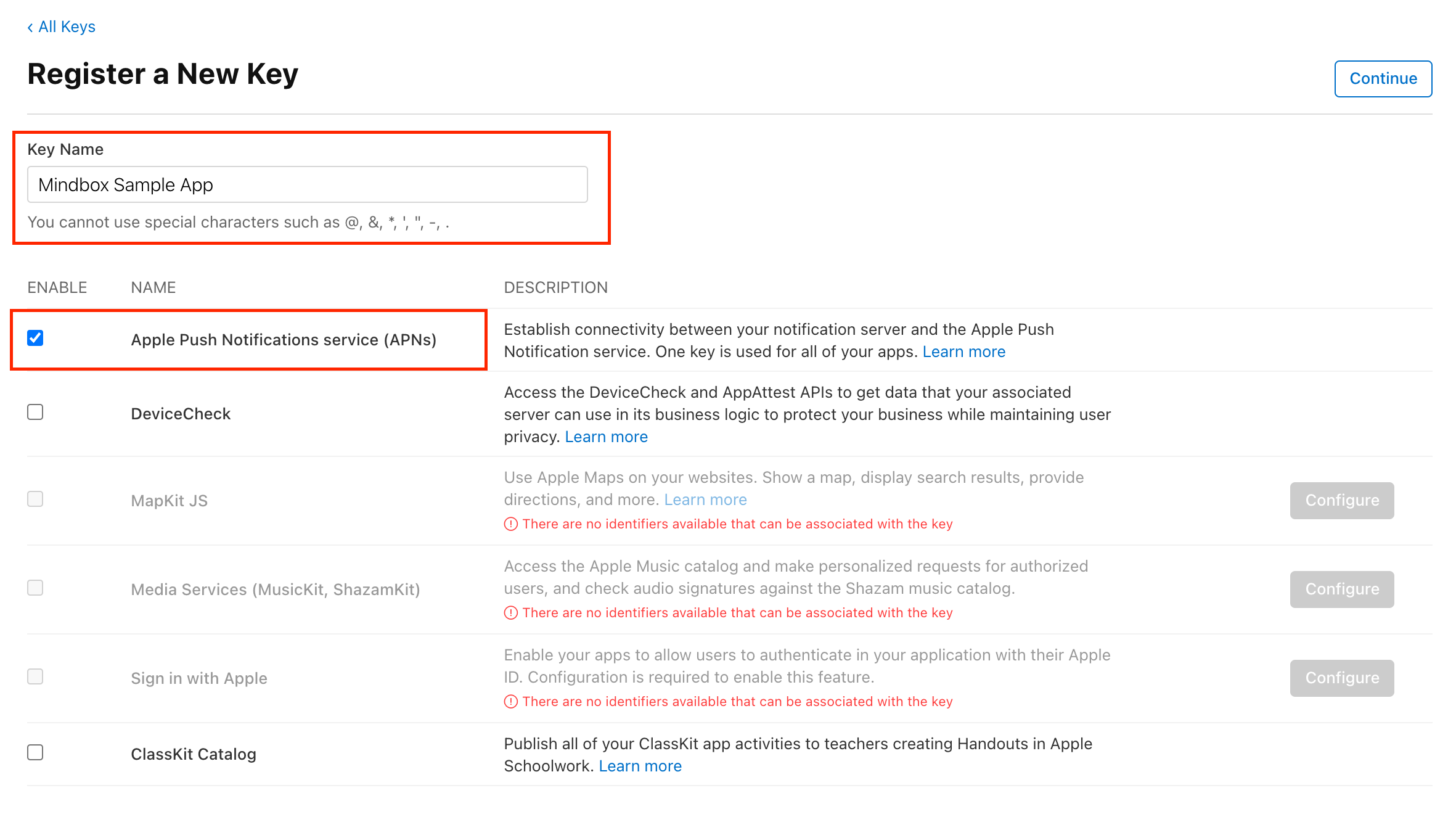
Type in the key name and tick Apple Push Notifications service (APNs). The other boxes are optional for push notifications.
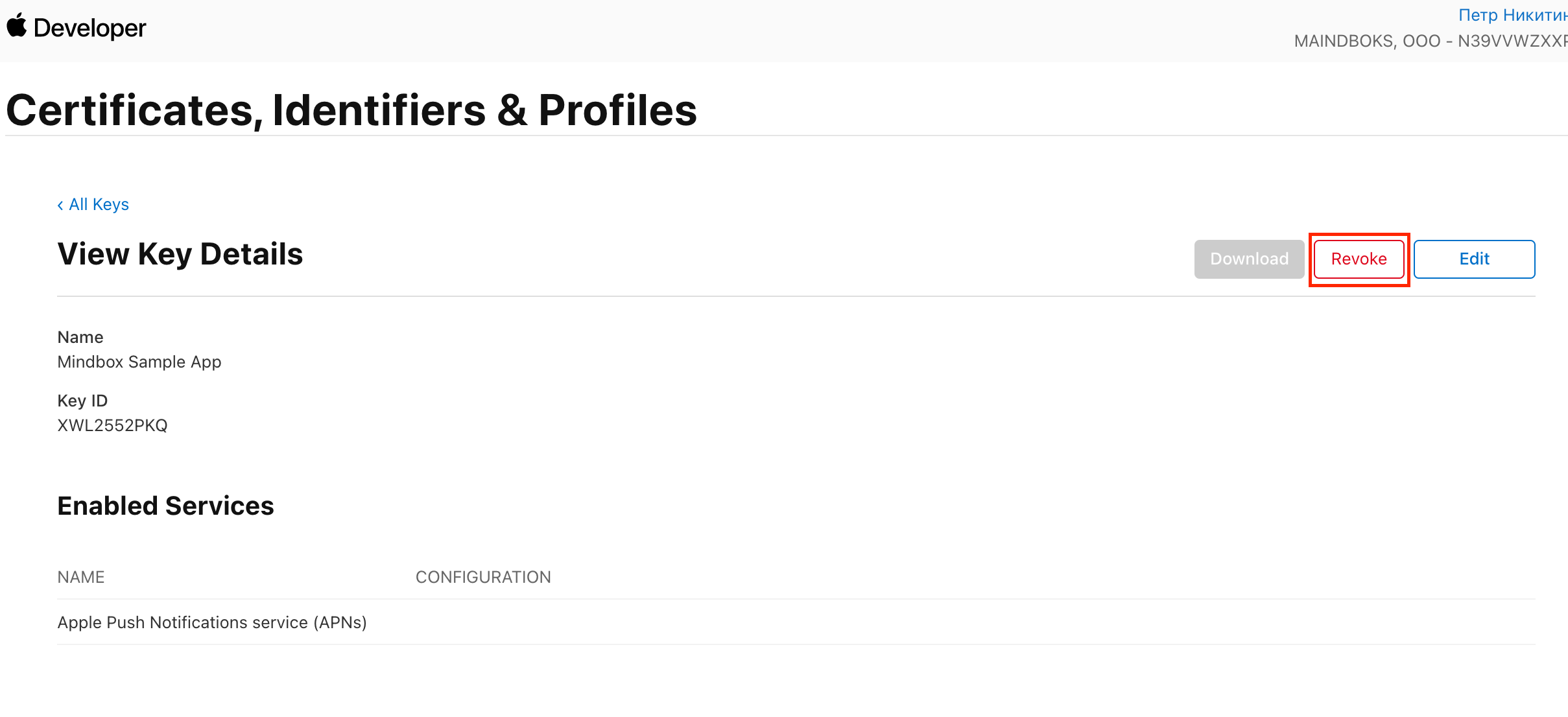
If you’re unable to tick APNs when creating a token
Apple limits the number of certificates you can use to connect to APNs. Therefore, when unable to generate new tokens from your own account, open one of your current tokens, revoke it, and re-generate.
As a result, you will get:
- A 10-char Key ID string;
- A text file (
.p8) with your Authentication Token.
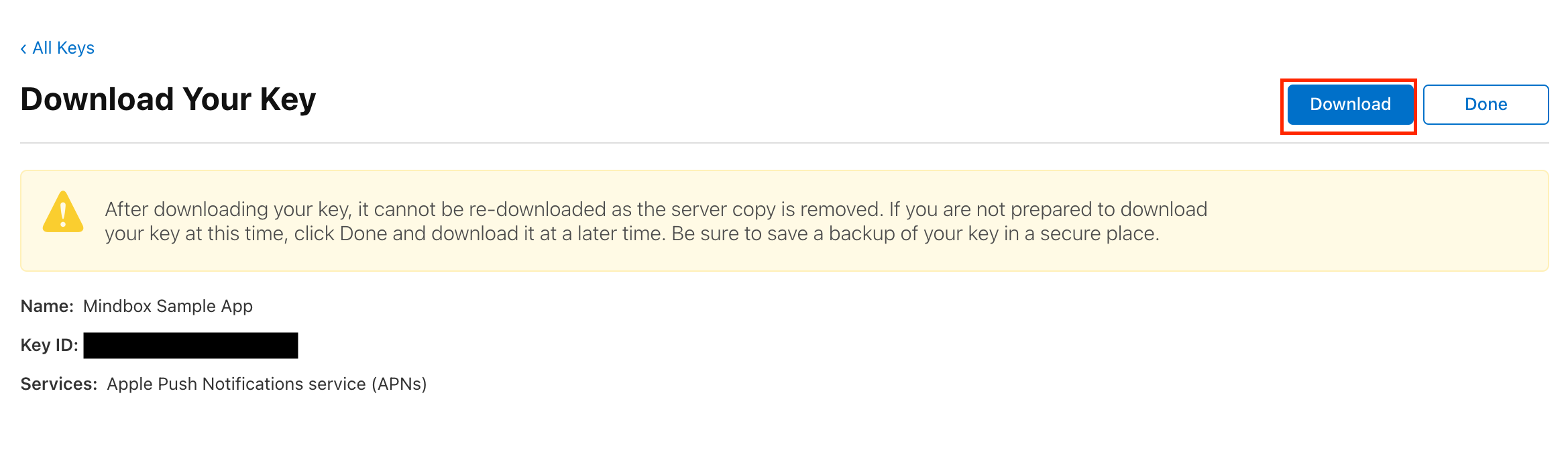
- Copy the values of the Key ID and authentication token into the Apple Push Notification service (APNs) connection settings of the previously created integration point.
Store your token in a safe placeThe Apple website gives you a single try to download your token, so store it securely to avoid having to re-generate a new one.
Bundle ID and Team ID
Next, you need to get a Bundle ID and Team ID:
- Go back to the Apple Developer account homepage: https://developer.apple.com/account/.
- Go to Certificates, Identifiers & Profiles.
- Go to the Identifiers tab.
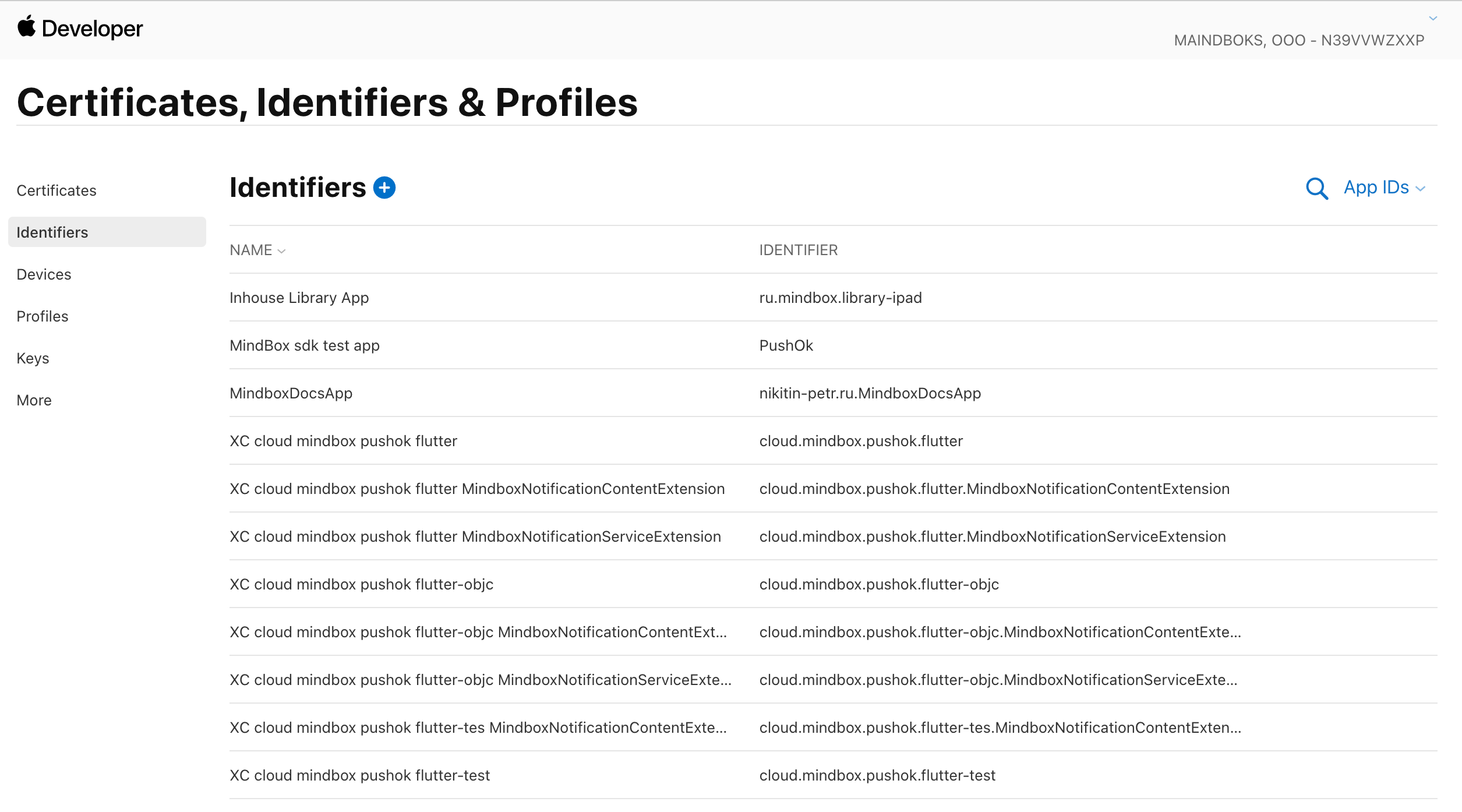
The Identifiers tab
- Find the app name and open it.
- Copy the values of your App ID Prefix and Bundle ID, available in the right column into the Apple Push Notification service (APNs) connection settings of the previously created integration point.
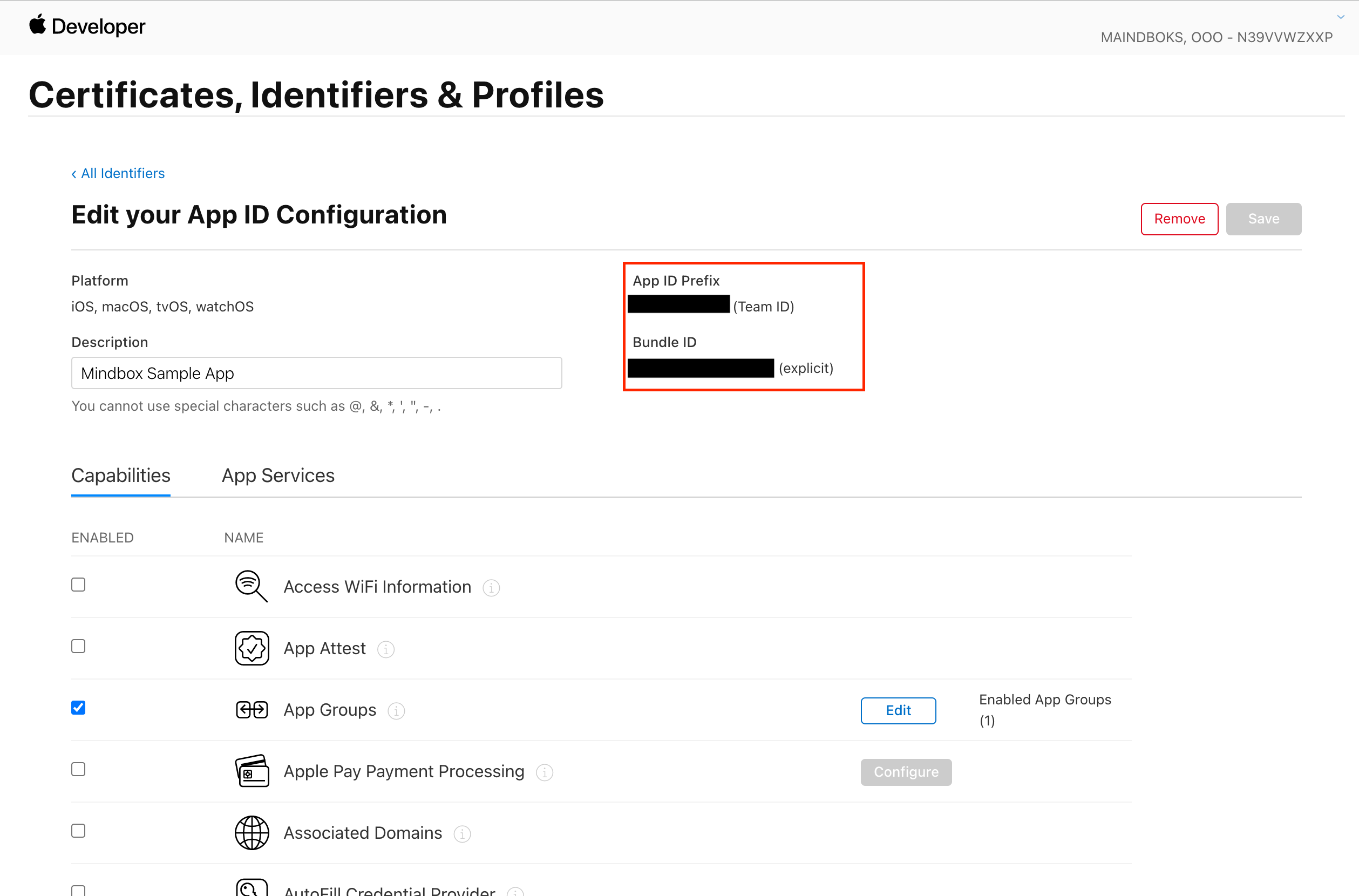
Bundle ID and Team ID
Integration settings
Enter Bundle ID, Team ID, Key ID and token into the Apple Push Notification service (APNs) connection settings for the integration point you created earlier Setting up Integration Points [iOS].
Updated 8 months ago