

Initializing the SDK
Make sure these steps are completed successfully:
Expected result of the “Initializing the SDK” step:
- The app launched successfully on both platforms (iOS and Android);
- The Mindbox SDK deviceUUID is displayed in the Xcode developer console;
- If integrating anonymous user creation and subscription in Maestra, a Maestra customer is created.
1. Choose an SDK configuration
Select an SDK configuration option based on marketing requirements.
You need to obtain the integration endpoint from your Maestra Forward Deployed Marketer or find it in the integration point settings.
Note that the integration endpoint is case-sensitive, meaning uppercase and lowercase letters matter.
Maestra’s Domain APIUse
api.maestra.ioto send requests to Maestra’s API.
How to submit anonymous users to Maestra and send them push notifications
final config = Configuration(
        domain: '<Maestra Domain API>',
        endpointIos: '<integration endpoint for iOs>',
        endpointAndroid: '<integration endpoint for Android>',
        shouldCreateCustomer: true,
        subscribeCustomerIfCreated: true
);
How to submit anonymous users to Maestra without the option to send them push notifications
final config = Configuration(
        domain: '<Maestra Domain API>',
        endpointIos: '<integration endpoint for iOs>',
        endpointAndroid: '<integration endpoint for Android>',
        shouldCreateCustomer: true,
        subscribeCustomerIfCreated: false
);
If you don’t want to submit anonymous users to Maestra
final config = Configuration(
        domain: '<Maestra Domain API>',
        endpointIos: '<endpoint for iOs>',
        endpointAndroid: '<endpoint for Android>',

        shouldCreateCustomer: false
);
2. Initializing the SDK
2.1. Flutter setup
Initialize the SDK synchronously in the main function in lib/main.dart
Use the configuration option selected in step 1.
import 'package:flutter/material.dart';
import 'package:mindbox/mindbox.dart';

void main() {
  // INSERT THE SDK CONFIGURATION SELECTED IN STEP 1 HERE

  Mindbox.instance.init(configuration: config);
  runApp(const MyApp());
}To verify that the SDK was initialized correctly, log the deviceUUID to the console at any convenient point.
Verification
We recommend logging the deviceUUID immediately after calling Mindbox.init.
Then run the app from Android Studio on a real device or an emulator.
import 'package:flutter/material.dart';
import 'package:mindbox/mindbox.dart';

void main() {
  ...
  runApp(const MyApp());

  Mindbox.instance.getDeviceUUID((uuid) => print(uuid));
}At this stage, you can already run the app on Android.
2.2. iOS Setup
To integrate the Mindbox SDK into a Flutter project, you need to add the native Mindbox iOS SDK and configure the project accordingly.
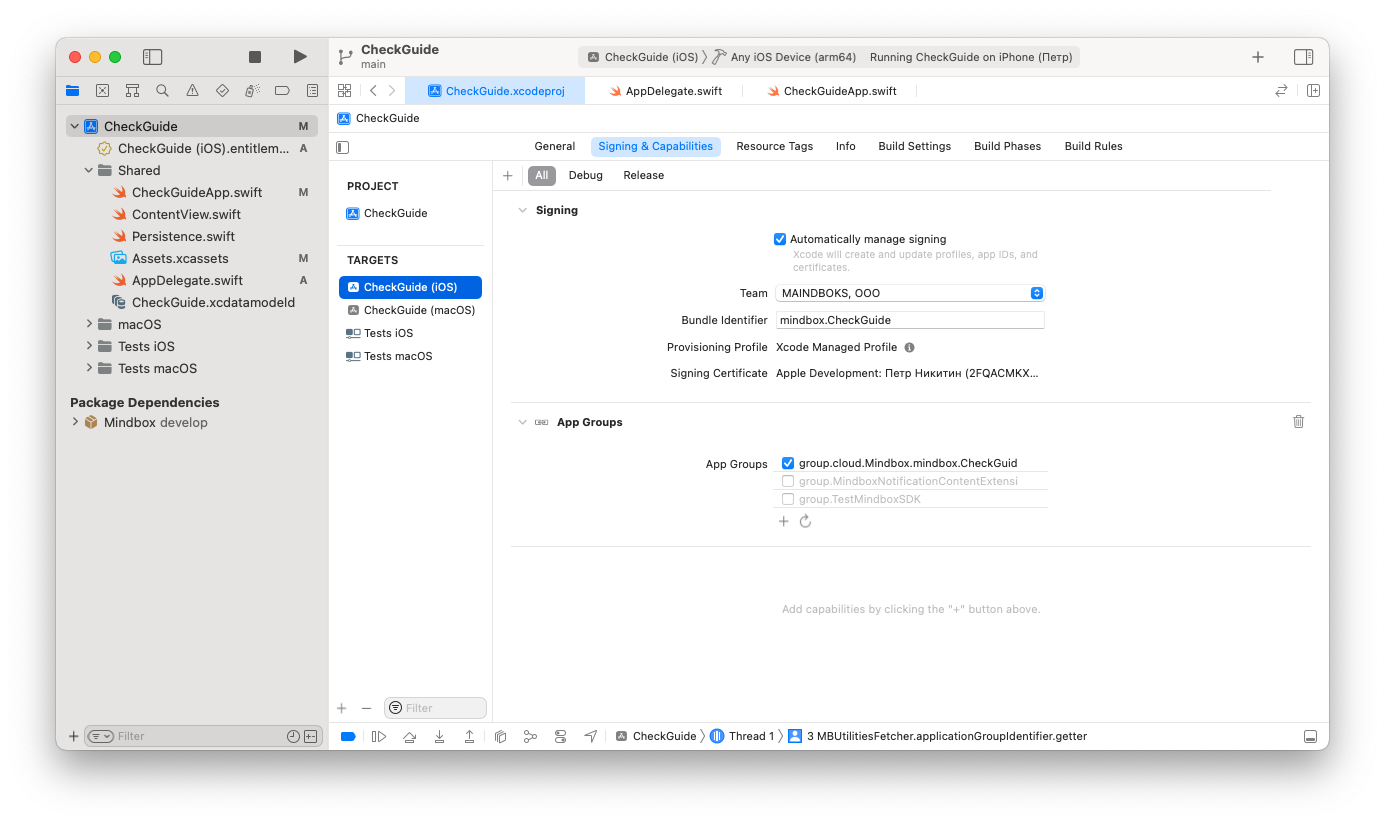
- Open the project settings.
- Select the main target.
- Go to the Signing & Capabilities tab.
- Click + Capability and choose App Groups.
- Add a new App Group with the following naming pattern
group.cloud.Mindbox.{app bundle ID}
For example, if the app bundle ID isMaestra-Sample-App, the App Group value should be:group.cloud.Mindbox.Maestra-Sample-App
The AppGroup must follow this naming pattern:
group.cloud.Mindbox.{app bundle ID}If the AppGroup pattern is incorrect in the Main Target, the app will fail to build.
It’s best to verify the actual value in the.entitlementsfile.
The SDK validates that the AppGroup name matches the required pattern. If the pattern is violated, the SDK throws an exception.
Run the app on iOS and verify the results of the setup.
Expected result of the “Initializing the SDK” step:
- The app launched successfully on both platforms (iOS and Android);
- The Mindbox SDK deviceUUID is displayed in the Xcode developer console;
- If integrating anonymous user creation and subscription in Maestra, a Maestra customer is created.
Switching the endpoint
If the app is used in multiple countries and the user’s actual location is determined only after launch, you may need to dynamically switch the endpoint to ensure data is associated with the correct country within the Maestra.
To update the settings, call Mindbox.instance.init again and pass the current values for endpointAndroid and endpointIos in the configuration.
Updated 2 months ago