

Push Notification Setup
Make sure the following steps are completed successfully:
Expected result of the “Push Notification Setup” step:A mobile push notification is successfully sent from Maestra and displayed on the user’s device.
You can use this guide to verify that push notifications are being sent correctly.
1. Enable push notifications in app settings
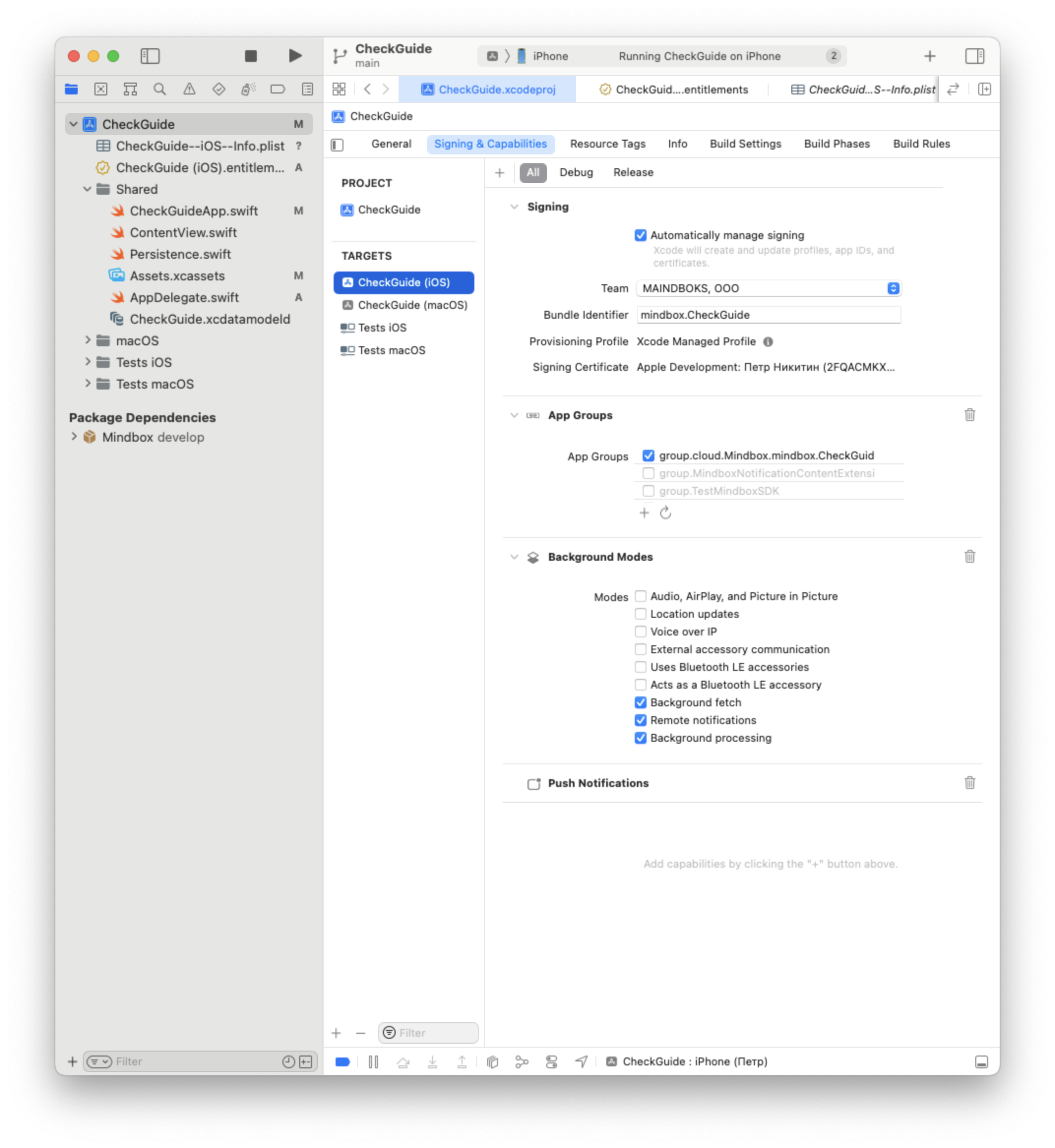
- Open the project settings.
- Select the main target.
- Go to the
Signing & Capabilitiestab. - Click
+ Capabilityand choosePush NotificationsandBackground modes; - In the Background Modes section, enable the following options:
- Background fetch
- Remote notifications
- Background processing
2. Set up Push notifications
Choose one of the options below and follow the instructions.
Basic push notification setup
It's a quick push notification setup that requires minimal changes. Works best when no custom logic is needed.
Custom push notification setup
Suitable if custom logic is required.
Verify the result of the “Push Notification Setup” step:A mobile push notification is sent from Maestra and is displayed on the device.
You can use this guide to verify that push notifications are being sent.
If you are testing push notifications in the Sandbox environment, make sure to enable the “Sandbox message” option in the “Default” campaign profile.
Learn more about the Sandbox environment.
Updated 8 months ago