

Initializing the SDK
Make sure this steps are completed successfully:
Expected result of the “Initializing the SDK” step:
- The app launches without errors;
- The Mindbox SDK deviceUUID is displayed in the Xcode developer console;
- Additionally, only if your integration includes creating and subscribing an anonymous user in Maestra, a Maestra customer profile will be created.
1. Setting up App Groups
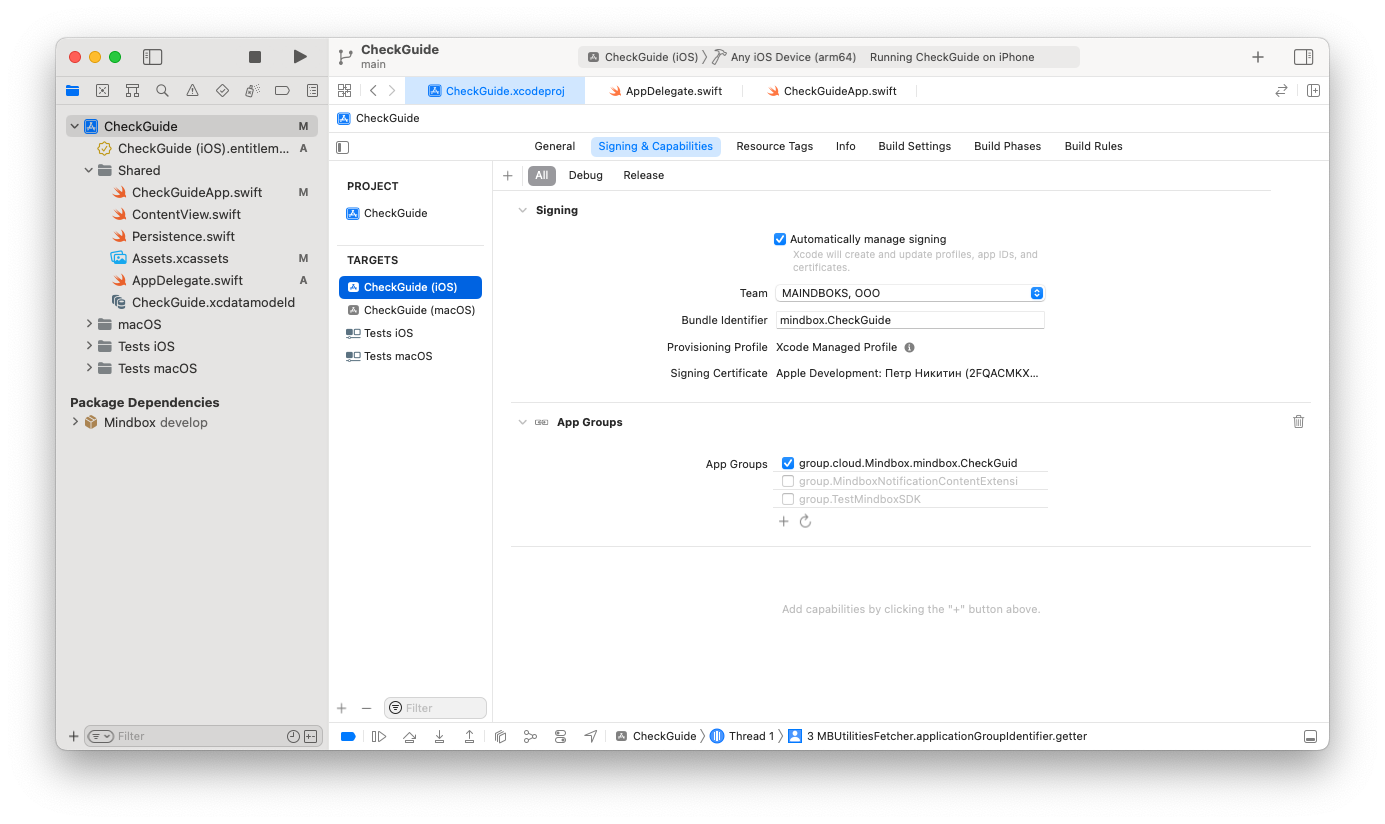
- Open your project’s settings.
- In Targets, select your main target.
- Go to the
Signing & Capabilitiestab. - Click Add and select
App Groups. - Add a new group with the following name template:
group.cloud.Mindbox.{Bundle ID of the app}.
For example, with aMaestra-Sample-Appas the Bundle ID, the App Group should begroup.cloud.Mindbox.Maestra-Sample-App.
Make sure you create your App Group with the following template:group.cloud.Mindbox.{bundle ID of your app}If there is an error in the main target’s app group template, the app won’t be compiled.
Consider checking the actual name using the
.entitlementsfile.
The SDK checks if the Group name matches the template, and will display an error message if there is a mismatch.
2. Selecting an SDK configuration
Follow your marketing requirements to select a fitting SDK configuration.
Please note:You’ll need to get a
"<project endpoint>"from your Maestra Forward Deployed Marketer or look it up in integration point settings.Keep in mind that the
"<project endpoint>"is case-sensitive. Incorrect casing will result in request errors.
1. I want to submit anonymous users to Maestra and send them push notifications:
let mindboxSdkConfig = try MBConfiguration(
    endpoint: "<project endpoint>",
    domain: "api.maestra.io",
    subscribeCustomerIfCreated: true,
    shouldCreateCustomer: true
)
2. I want to submit anonymous users to Maestra without sending them push notifications:
let mindboxSdkConfig = try MBConfiguration(
endpoint: "<project endpoint>",
domain: "api.maestra.io",
subscribeCustomerIfCreated: false,
shouldCreateCustomer: true
)
3. I don't want to submit anonymous users to Maestra:
let mindboxSdkConfig = try MBConfiguration(
endpoint: "<project endpoint>",
domain: "api.maestra.io",
shouldCreateCustomer: false
)
3. SDK Initialization
Initialization must be performed synchronously on the main thread.
We recommend performing the initial initialization AFTER requesting user consent for tracking by IDFA via Apple’s App Tracking Transparency APIs (iOS 14+).
If you don’t do this, the app will use the IDFV or generate a new deviceUUID on each installation.
If you’re using SwiftUI only and don’t have an AppDelegate file, you can create one.
The app can use IDFA, IDFV, or a deviceUUID as the user identifier, depending on whether the user grants tracking permission.
Note the differences between them:
- IDFA: available if the user grants tracking permission; persists across app reinstallations.
- IDFV: used when IDFA is not available; may change if all apps from the same vendor are removed.
- Device UUID: used as a fallback; always regenerated and never persists.
3.1 SDK Initialization WITHOUT IDFA request
This initialization approach does not account for the IDFA permission request, so the user identifier will be either the IDFV or a randomly generated UUID.
Initialize the library in didFinishLaunchingWithOptions and use the configuration option selected in step 2.Selecting an SDK configuration.
func application(
    _ application: UIApplication,
    didFinishLaunchingWithOptions launchOptions: [UIApplication.LaunchOptionsKey: Any]?
) -> Bool {
    super.application(application, didFinishLaunchingWithOptions: launchOptions)

    // Insert the SDK configuration chosen in Step 2 Selecting an SDK configuration here.
    Mindbox.shared.initialization(configuration: mindboxSdkConfig)

    // ...

    return true
}To check that the SDK has been initialized correctly, add the deviceUUID anywhere in the console.
How can I check this?
We recommend logging the deviceUUID immediately after calling Mindbox.shared.initialization.
Then run the app from Xcode on a real device or simulator:
func application(
    _ application: UIApplication,
    didFinishLaunchingWithOptions launchOptions: [UIApplication.LaunchOptionsKey: Any]? = nil
) -> Bool {
    // Mindbox.shared.initialization(...)

    Mindbox.shared.getDeviceUUID { deviceUUID in
        print(deviceUUID)
    }

    return true
}
3.2 SDK Initialization WITH IDFA request
If you want to use IDFA as the user identifier in Maestra, the first initialization must be performed after requesting user tracking permission for IDFA using the App Tracking Transparency (ATT) APIs.
In the initializeMindbox method, use the configuration option you selected in Step 2 Selecting an SDK configuration.
If you are using the UISceneDelegate lifecycle instead of UIApplicationDelegate(as shown in the example below), use the corresponding initialization method for your app lifecycle.
import UIKit
import Mindbox
import AppTrackingTransparency

// This is only one use case. It is necessary to adapt the approach to your specific use case.

@main
class AppDelegate: UIResponder, UIApplicationDelegate {

  func application(
    _ application: UIApplication,
    didFinishLaunchingWithOptions launchOptions: [UIApplication.LaunchOptionsKey: Any]?
  ) -> Bool {
    // ...

    if ATTrackingManager.trackingAuthorizationStatus != .notDetermined {
      initializeMindbox()
    }

    // ...
    return true
    }

  // If you're using scenes (iOS 13.0+), UIKit will not call this method. Use `sceneDidBecomeActive(_:)` instead.
  func applicationDidBecomeActive(_ application: UIApplication) {
    if ATTrackingManager.trackingAuthorizationStatus == .notDetermined {
      DispatchQueue.main.async {
        ATTrackingManager.requestTrackingAuthorization { status in
          self.initializeMindbox()
        }
      }
    }
  }

  func initializeMindbox() {
    do {
      // Insert the SDK configuration chosen in Step 2 Selecting an SDK configuration here.
      Mindbox.shared.initialization(configuration: mindboxSdkConfig)
    } catch {
      print(error.localizedDescription)
    }
  }
  // ...
}
Verify the result of the “Initializing the SDK” step:
- The app launches without errors;
- The Mindbox SDK deviceUUID is displayed in the Xcode developer console;
- Additionally, this applies only if your integration involves creating and subscribing an anonymous user — new customer will be created in Maestra account
If You Need to Change the Integration point
If your app is used in multiple countries and the user's actual location becomes known only after the app launches, you may need to update the endpoint to ensure correct country-specific data handling. To do this, call Mindbox.shared.initialization again and provide a new endpoint value in the configuration.
Updated 2 months ago